After a few hours of work, however, the small problems start to show. Your laptop screen sits too low, your desk becomes crowded with chargers and cables, video calls do not sound as clear as they should, and your laptop somehow has every feature except enough ports for the devices you actually use.
That is where choosing the best work-from-home accessories can make a real difference.
The goal is not to fill your desk with gadgets or recreate an aesthetic home office you saw on social media. A useful accessory should solve a problem you deal with regularly—whether that means improving your workspace, making meetings easier, reducing clutter, or helping you connect and charge your devices more efficiently.
In this guide, we will look at the most useful work-from-home accessories, explain what deserves priority and what can wait, and highlight several practical options available from Cart in Jordan.
What Are the Most Important Work-From-Home Accessories?
If you are setting up a home office, you do not need to buy everything at once. Some accessories can improve your everyday workflow immediately, while others are only useful for particular jobs or working styles.
|
Accessory |
What It Helps With |
Priority |
|
Laptop Stand |
Screen positioning and desk organization |
High |
|
Keyboard |
Long typing sessions |
High |
|
Mouse |
Everyday navigation and control |
High |
|
Headset |
Meetings and focus |
High |
|
Webcam |
Video calls |
Depends on your work |
|
USB-C Hub |
Ports and connectivity |
Depends on your device |
|
Multi-Port Charger |
Charging multiple devices |
Important |
|
Power Bank |
Backup power and mobility |
Depends on use |
|
Desk Light |
Workspace and call lighting |
Important |
|
Monitor |
More screen space |
Advanced users |
|
Cable Management |
Desk organization |
Useful |
|
Desk Mat |
Desktop organization |
Optional |
Instead of asking, “What accessories am I missing?”, ask yourself:
“What problem keeps getting in the way of my work?”
That answer is usually the best place to start.
How to Choose the Right Accessories for Working From Home
Before buying anything, think about the way you actually work.
A content writer does not need the same setup as a graphic designer. Someone who spends most of the day in meetings will have different priorities from a programmer who works independently for hours.
What Is Your Main Device?
Do you work primarily on a laptop, desktop computer, iPad, or a combination of several devices?
A laptop with limited ports may make a USB-C hub essential, while a desktop computer with plenty of connectivity may not need one at all.
Working from a tablet with an external keyboard also creates a completely different set of requirements from a traditional laptop setup.
What Type of Work Do You Do?
If most of your day involves writing, your keyboard and mouse may deserve the largest share of your accessory budget.
If your calendar is filled with Zoom, Google Meet, or Microsoft Teams calls, audio quality, webcam performance, and lighting become much more important.
Graphic designers and video editors may prioritize an external monitor, USB-C hub, and external storage. Sales and customer service professionals may get more value from a reliable headset they can comfortably use throughout the day.
How Many Hours Do You Spend at Your Desk?
An accessory you use for eight hours every day deserves more attention than something you use once a week.
A comfortable keyboard or a mouse that suits your workflow can therefore be more valuable than an attractive desk accessory that does very little to improve the way you work.
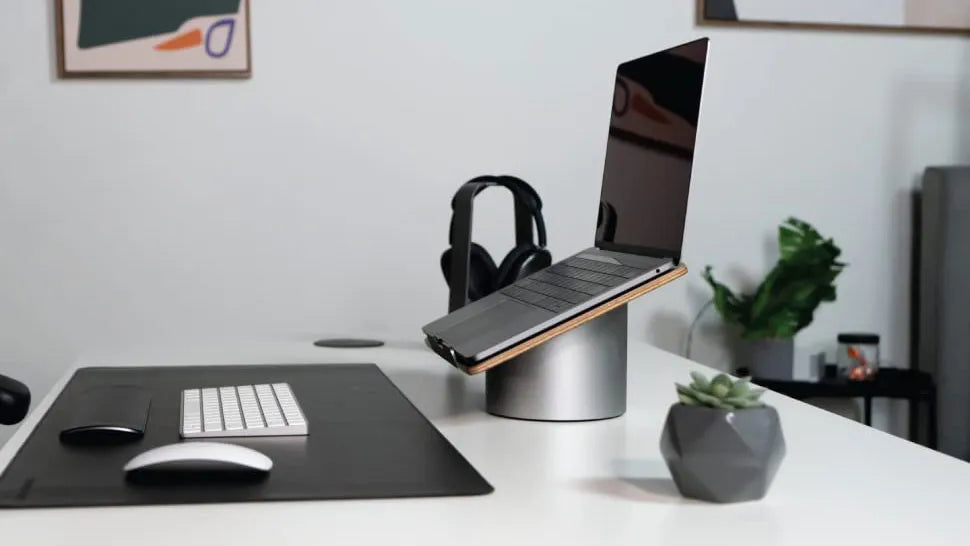
1. Laptop Stand: Start With Your Screen Position
One of the simplest upgrades you can make to a laptop-based home office is changing where the screen sits on your desk.
A good laptop stand allows you to adjust the height or angle of your laptop and can make your setup more flexible, especially when paired with an external keyboard and mouse.
When choosing one, consider:
-
Height and angle adjustment
-
Stability
-
Supported laptop sizes
-
Ventilation
-
Foldable design
-
Portability and weight
The WiWU ZM-902 Foldable Laptop Stand, for example, features a foldable design, multiple viewing angles, anti-slip pads, and support for a range of laptops and tablets.
If screen positioning is one of the first things you would change about your workspace, solve that problem before adding more accessories.
View the WiWU ZM-902 Foldable Laptop Stand on Cart
Want to compare more options before choosing?
2. Keyboard: An Accessory You May Use More Than Almost Anything Else
If your job involves a lot of typing, your keyboard is not a secondary part of your home office setup.
You use it for emails, documents, reports, research, spreadsheets, messages, and task management throughout the working day.
The right keyboard depends on both your work and the amount of space available on your desk.
Full-Size Keyboard
A full-size keyboard is particularly useful if you work with numbers, accounting software, or spreadsheets because the dedicated numeric keypad can make data entry easier.
Compact Keyboard
Compact keyboards free up more room for mouse movement and can be a better fit for smaller desks or minimalist setups.
Wireless Keyboard
A wireless keyboard helps reduce cable clutter and gives you more flexibility when arranging your workspace.
Mechanical Keyboard
Some users prefer mechanical keyboards because of their typing feel and feedback. That does not make them automatically better for everyone, though. Your personal preference, working environment, and available desk space still matter.
One practical option available from Cart is the Logitech MK470 Slim Combo, which combines a slim wireless keyboard with a wireless mouse. It uses a 2.4GHz wireless connection and offers a clean setup for everyday office work.
Want a keyboard and mouse without buying two separate products?
View the Logitech MK470 Slim Keyboard & Mouse Combo on Cart
3. Mouse: A Small Accessory You Use Hundreds of Times a Day
A laptop trackpad can be perfectly fine when traveling or completing quick tasks, but many people prefer a separate mouse during longer working sessions.
A mouse gives you more freedom of movement and control, particularly when working with spreadsheets, design software, multiple browser tabs, or several displays.
Standard Mouse or Ergonomic Mouse?
Ergonomic and vertical mouse designs may feel more comfortable for some users, but there is no universal option that works for everyone.
Consider the size of your hand, how you naturally hold the mouse, and the type of work you perform.
Designers and editors may care more about precision and programmable buttons. For everyday office work, comfort, battery life, and reliable connectivity may matter more than a long list of additional features.
For a simple wired workstation, the Logitech MK120 Keyboard & Mouse Combo combines a full-size keyboard with a numeric keypad and an optical mouse.
View the Logitech MK120 Keyboard & Mouse Combo on Cart
4. Headset for Working From Home: Call Quality Matters
Headphones that sound great for music are not necessarily the best headphones for work.
If a significant part of your day involves client calls or online meetings, look beyond music performance and focus on:
-
Microphone quality
-
Comfort during long sessions
-
Background noise reduction
-
Easy volume and mute controls
-
Wired or wireless connectivity
-
Compatibility with your devices and meeting platforms
Headphones or Earbuds for Work?
|
Headphones |
Earbuds |
|
|
Long sessions |
Can be more comfortable depending on design |
Lighter and smaller |
|
Portability |
Less portable |
Excellent |
|
Noise isolation |
Many strong options |
Depends on the model |
|
Meetings |
Excellent with the right microphone |
Excellent depending on microphone quality |
The Jabra Evolve 20 SE is designed specifically for professional communication, offering a noise-canceling microphone, passive noise cancellation, and inline controls for calls and audio.
If meetings are a major part of your working day, choose your headset based on how clearly other people can hear you—not just how good your music sounds.
View the Jabra Evolve 20 SE on Cart
Need a different design or connectivity option?
Browse headsets with microphones on Cart
5. Webcam: When Being on Camera Is Part of Your Job
Not everyone working from home needs an external webcam.
If your laptop camera already provides acceptable quality and video meetings are only an occasional part of your job, buying another camera may not be a priority.
The situation changes if you work in sales, consulting, training, recruitment, or another role where client-facing video calls happen regularly.
When choosing a webcam, consider:
-
Resolution
-
Autofocus
-
Field of view
-
Performance in moderate lighting
-
Built-in microphone
-
Mounting options
-
Privacy shutter, if important to you
Cart offers webcams from brands including Logitech, UGREEN, Promate, and Insta360, giving you several options depending on your budget and video requirements.
If video calls are part of your professional presence, make sure your camera and lighting support it.
6. Good Lighting: Not Just for Zoom Calls
Lighting is useful for more than video meetings. It can also make your workspace more practical, especially if you work in the evening or your desk receives limited natural light.
Depending on your setup, you could consider:
-
Desk Lamp
-
Monitor Light Bar
-
LED Light
-
Ring Light
Before buying another light, however, try changing the position of your desk relative to your window.
During video calls, placing your main light source in front of you or slightly to one side generally works better than having a bright window or lamp directly behind you.
Sometimes, improving the position of your light makes a bigger difference than buying a brighter one.
7. USB-C Hub: When Your Laptop Has Everything Except Enough Ports
Many modern laptops have fewer ports than users actually need.
You notice the problem quickly when you try to connect a monitor, keyboard, mouse, external storage, and memory card at the same time.
A USB-C hub can turn a single compatible port into a much more versatile connectivity solution.
Depending on the model, it may add:
-
HDMI
-
USB-A
-
USB-C
-
SD card slot
-
microSD card slot
-
Ethernet
-
Power Delivery
But do not choose a hub based purely on the number of ports.
Think about what you actually connect.
A designer who regularly transfers files from SD cards has different requirements from an office worker who simply needs HDMI and USB-A.
For more advanced workstations, the Powerology 12-in-1 USB-C Hub offers multiple connectivity options, including dual 4K display support through HDMI and DisplayPort, data transfer speeds of up to 10Gbps, Gigabit Ethernet, and Power Delivery up to 100W.
Instead of buying a separate adapter for every task, choose a hub around the connections you actually use.
View the Powerology 12-in-1 USB-C Hub on Cart
8. Multi-Port Charger: One Charger Can Be Better Than Four
Take a look at your desk.
If you have a laptop, smartphone, tablet, earbuds, and smartwatch, a small workspace can quickly turn into a collection of chargers and cables.
A multi-port charger can simplify that setup by reducing the number of separate power adapters you need.
GaN chargers have become particularly useful for multi-device setups because they can provide substantial charging power in relatively compact designs.
When comparing chargers, however, do not look at total wattage alone. Check how the available power is distributed when several ports are being used simultaneously.
The Mcdodo GaN 65W Multi-Port Fast Charger, for example, offers three ports—two USB-C and one USB-A—with total output of up to 65W.
If every device on your desk currently has a separate charger, simplifying the setup may be one of the easiest upgrades you can make.
View the Mcdodo GaN 65W Multi-Port Charger on Cart
For different power requirements and port configurations:
Browse multi-port chargers on Cart
9. Power Bank: Do You Really Need One When Working From Home?
The short answer is: not necessarily.
If your workspace is always close to a power outlet and your devices rarely leave home, a power bank probably should not be your first purchase.
It becomes more useful if your routine includes:
-
Moving between home and an office
-
Working from coworking spaces
-
Working from different locations
-
Spending long days away from home
-
Hybrid work
-
Keeping backup power available for a phone or tablet
When choosing one, do not focus on battery capacity alone. Check output power, USB-C Power Delivery, weight, and the number of available ports.
The clearer you are about which devices you plan to charge, the easier it becomes to choose the right power bank.
10. External Monitor: When Does It Become a Real Upgrade?
For someone who works in one application at a time, a second screen may not be essential.
But if your job constantly requires you to move between several windows, additional screen space can make your workflow much easier to manage.
An external monitor can be particularly useful for:
-
Spreadsheets
-
Coding
-
Video editing
-
Graphic design
-
Research
-
Comparing documents
-
Keeping email and work applications visible at the same time
The point is not to own two screens because the setup looks impressive.
A second monitor is valuable when the extra screen space genuinely reduces the amount of time you spend switching between windows.
11. Monitor Stand or Arm: When Desk Space Becomes the Problem
Once you add an external monitor, you may discover that screen space is no longer the issue—desk space is.
A monitor stand or arm can raise the display and free up part of the desk surface. Depending on the design, it can also allow you to adjust the screen's position, height, and angle.
Before buying one, check:
-
VESA compatibility
-
Monitor weight
-
Supported screen size
-
Mounting method
-
Height and angle adjustment
-
Available desk space
If you use both a laptop and monitor, positioning those two displays effectively may be more useful than adding another screen.
12. Desk Lamp: Lighting You Can Use Throughout the Day
If you work in the evening or regularly use papers and notes alongside your computer, a good desk lamp can become a practical addition to your home office.
Features such as adjustable brightness, color temperature, and lighting angle are often more useful than appearance alone.
Some people prefer monitor light bars because they illuminate the desk without taking up additional surface space. Traditional desk lamps, on the other hand, can provide more flexibility when directing the light.
There is no universal winner here. Choose according to the way your workspace is arranged.
13. Cable Management: Sometimes Organization Starts With Removing Things
Cable clips, Velcro ties, and cable sleeves can all help create a cleaner workspace.
But before buying an organizer for every cable, ask whether you actually need all those cables in the first place.
Perhaps three separate chargers could be replaced by one multi-port charger. A wireless keyboard and mouse could remove another two cables. One USB-C hub could replace several small adapters.
Good cable management often begins with reducing clutter before organizing what remains.
14. Desk Mat and Other Desk Organization Accessories
A desk mat is not essential, but it can create a more consistent surface for your keyboard and mouse while helping protect the desk, depending on the material.
The same applies to phone stands, tablet stands, and desk organizers.
These accessories are useful when they solve a specific problem, but they should not take priority over a keyboard, mouse, headset, or other accessory you use for hours every day.
Best Work-From-Home Accessories Available on Cart
Rather than filling your desk with products that perform similar functions, it makes more sense to choose accessories that solve different problems.
WiWU ZM-902 Foldable Laptop Stand – For Better Laptop Positioning
With its foldable, multi-angle design, the WiWU ZM-902 is suitable for home, office, and portable setups.
It is a practical option for users who want more control over their laptop's position without adding a large permanent stand to the desk.
Best for: Writing, studying, meetings, and everyday laptop use.
Logitech MK470 Slim Combo – For Wireless Typing and Navigation
The Logitech MK470 combines a wireless keyboard and mouse in one package. Its full keyboard layout includes a numeric keypad while maintaining a slim design suitable for everyday productivity.
Best for: Office work, content writing, business administration, and compact workspaces.
Jabra Evolve 20 SE – For Calls and Meetings
Designed for professional communication, the Jabra Evolve 20 SE combines a noise-canceling microphone, passive noise cancellation, and convenient call controls.
Best for: Sales, customer service, online meetings, and other call-heavy jobs.
Powerology 12-in-1 USB-C Hub – For Multi-Device Workstations
This hub expands a compatible USB-C connection into a much broader workstation, including dual 4K display support, Gigabit Ethernet, high-speed data connectivity, and Power Delivery.
Best for: Graphic design, photography, video editing, and laptops with limited ports.
Mcdodo GaN 65W Multi-Port Charger – For Simplifying Your Charging Setup
With three charging ports and total output of up to 65W, the Mcdodo charger can reduce the number of separate power adapters needed around a multi-device workspace.
Best for: Users with a laptop or tablet, smartphone, and several accessories on the same desk.
Best Work-From-Home Accessories by Job Type
Instead of copying a ready-made desk setup from the internet, build yours around what you actually do.
|
Type of Work |
Accessories to Prioritize |
|
Writing & Content |
Laptop Stand + Keyboard + Mouse |
|
Sales & Meetings |
Headset + Webcam + Lighting |
|
Graphic Design |
Monitor + Precision Mouse + USB-C Hub |
|
Video Editing |
Monitor + USB-C Hub + External Storage |
|
Programming |
Keyboard + Mouse + Monitor |
|
Customer Service |
Comfortable Headset + Laptop Stand |
|
Hybrid Work |
Compact Keyboard + Mouse + Charger + Power Bank |
|
Office & Administration |
Keyboard + Mouse + Monitor + Multi-Port Charger |
These combinations are starting points rather than fixed shopping lists. Adjust them according to the problems you encounter in your own workflow.
Work-From-Home Accessories on a Budget: What Should You Buy First?
If you are working with a limited budget, avoid spreading it across ten inexpensive accessories.
Start with the products you will use throughout the day.
First Priority: Solve Your Biggest Everyday Problem
If your laptop screen position bothers you, start with a stand.
If typing is the problem, focus on your keyboard.
If relying on the trackpad for hours is inconvenient, a separate mouse may be more valuable than decorative lighting.
Second Priority: Communication
If you have calls every day, a clear and comfortable headset may provide more value than an additional monitor.
Third Priority: Connectivity and Power
If you constantly swap adapters or chargers, a USB-C hub or multi-port charger may solve a recurring problem.
Fourth Priority: Larger Upgrades
An external monitor, advanced webcam, dedicated lighting setup, and additional accessories can come later.
You do not have to build your entire home office in one day.
A Minimal Home Office Setup
Sometimes, the best setup is the simplest one.
Basic Work Setup
Laptop + Stand + Keyboard + Mouse
For many jobs built around writing, administration, research, and browsing, this may be all you need.
Meeting Setup
Laptop + Headset + Webcam + Light
A better option for people whose work involves frequent calls, presentations, interviews, or meetings.
Productivity Setup
Laptop + Monitor + Keyboard + Mouse + USB-C Hub
Useful for anyone who regularly works across several applications and windows.
Creative Setup
Laptop + Monitor + Precision Mouse + USB-C Hub + External Storage
A stronger fit for graphic design, photography, and video editing.
You do not need to combine all four setups. Choose the one that reflects the way you actually work.
Work-From-Home Accessories Worth Investing In for Daily Use
There is a simple rule that can help you decide where to spend your budget:
The more often you use an accessory, the more carefully you should choose it.
You may press your keyboard keys thousands of times every week. Your mouse may stay in your hand for hours. Your headset could remain on for half the working day, while your laptop stand determines where your screen sits throughout every working session.
These accessories usually deserve more attention than decorative products that have little effect on your workflow.
Common Mistakes When Setting Up a Home Office
One of the most common mistakes is choosing accessories based on how a desk looks rather than how it works.
You might buy a large keyboard and discover that there is barely enough room left for your mouse. Or you may choose headphones that sound excellent for music but have a microphone that does not work well for meetings.
Another common mistake is buying a USB-C hub with ten ports when you regularly use only two, or choosing a high-powered charger without checking how the available power is distributed when several devices are connected.
The same principle applies to monitors. Adding one or two extra screens does not automatically improve productivity. If your desk is small or your workflow does not benefit from additional display space, another monitor may simply create more clutter.
Most importantly, do not assume every workspace problem needs another purchase.
Sometimes changing the position of your desk, screen, or lighting can make a bigger difference.
How to Improve Your Workspace Without Buying Anything
Before creating another shopping list, try making a few simple changes:
-
Position your main screen directly in front of you.
-
Make better use of natural light.
-
Remove cables and devices you no longer use.
-
Keep frequently used items within easy reach.
-
Clear unrelated objects from the desk.
-
Adjust screen brightness to match your environment.
-
Create one clear working area instead of spreading equipment across several spaces.
Once you make these changes, it becomes easier to see which remaining problems genuinely require a new accessory.
Checklist Before Buying Work-From-Home Accessories
Before adding another item to your cart, ask yourself:
-
What problem am I trying to solve?
-
How many hours will I use this accessory every day?
-
Does it fit my available desk space?
-
Is it compatible with my device?
-
Would wired or wireless work better for me?
-
Which ports and connections do I actually need?
-
Will I need another charger or adapter to use it?
-
Can one product perform more than one useful function?
-
Will I use it only at home or while traveling too?
-
Is it genuinely a priority within my current budget?
Answering these questions can prevent you from ending up with a desk full of good products that you rarely use.
FAQs About the Best Work-From-Home Accessories
What Are the Most Important Work-From-Home Accessories?
It depends on your job, but a laptop stand, keyboard, mouse, and headset are among the most practical accessories for everyday laptop-based work. A monitor, webcam, or USB-C hub can then be added depending on your workflow.
How Do I Set Up a Good Home Office?
Start with your main device and screen position. If you use a laptop for long working sessions, consider adding an external keyboard and mouse. Then look at communication, connectivity, charging, and lighting based on your daily tasks.
What Are the Best Laptop Accessories for Working From Home?
A laptop stand, external keyboard, mouse, and USB-C hub are among the most useful additions. Your priorities should depend on your desk space, available ports, and the type of work you do.
Do I Need a Laptop Stand for Working From Home?
Not everyone needs one, but a laptop stand can be useful when you want more control over the position of your screen, especially if you use a separate keyboard and mouse.
Do I Need an External Keyboard and Mouse?
Not necessarily. However, they can make a laptop-based workstation more practical if you spend long hours typing, working with spreadsheets, designing, or navigating multiple applications.
What Is the Best Headset for Working From Home?
Look for a headset with a clear microphone, comfortable design, and reliable connection. Noise reduction and convenient call controls are particularly useful if meetings make up a significant part of your day.
Do I Need an External Webcam?
If your laptop webcam provides suitable quality and you rarely attend video meetings, probably not. An external webcam becomes more useful if you regularly participate in client meetings, interviews, presentations, or training sessions.
What Does a USB-C Hub Do?
A USB-C hub expands the connectivity of a compatible USB-C port. Depending on the model, it can add HDMI, USB-A, card readers, Ethernet, additional USB-C connections, and Power Delivery.
Is a Second Monitor Worth It for Working From Home?
It can be if you regularly switch between multiple applications, documents, and windows. If your work mainly involves one application at a time, an additional monitor may not be your first priority.
What Is the Best Lighting for Video Calls?
A soft light positioned in front of you or slightly to one side usually works better than a strong light directly behind you. Depending on your setup, you can use natural light, a desk lamp, LED light, or ring light.
What Are the Best Work-From-Home Accessories on a Budget?
Start with the accessories you use throughout the day. Depending on your biggest problem, that could be a laptop stand, keyboard, or mouse. If calls are central to your work, prioritize a reliable headset.
How Can I Organize Cables on My Home Office Desk?
Start by reducing the number of cables you need. Then use cable clips, Velcro ties, or cable sleeves to organize what remains. Wireless accessories and a multi-port charger can also help reduce clutter.
What Is the Best Work-From-Home Setup?
There is no single setup that works for everyone. For basic laptop-based office work, a laptop stand, keyboard, and mouse provide a strong starting point. Add a headset, monitor, webcam, or USB-C hub according to your workflow.
What Are the Best Accessories for Hybrid Work?
Portable accessories become more valuable when you regularly move between locations. A foldable laptop stand, compact keyboard, wireless mouse, multi-port charger, and suitable power bank can make a hybrid setup easier to carry and rebuild wherever you work.
Conclusion: The Best Home Office Is Not the One With the Most Accessories
Choosing the best work-from-home accessories is not about how many products you can fit on your desk. It is about how much difference each product makes during your working day.
If your screen is positioned poorly, start with the stand. If typing takes up most of your day, prioritize the keyboard and mouse. If your calendar is packed with calls, a clear and comfortable headset is more valuable than another decorative accessory. And if connecting another device always sends you searching for an adapter, a USB-C hub may be one of the most useful upgrades you can make.
Start with the problem, then choose the tool that solves it.
Cart offers laptop stands, keyboards, mice, headsets, chargers, USB-C hubs, and other accessories to help you build a home office that fits the way you actually work.
Ready to upgrade your workspace? Choose accessories that make your working day easier—not simply products that add more devices to your desk.
Explore work and tech accessories on Cart
Meta Title: Best Work-From-Home Accessories: Build a Better Home Office
Meta Description: Discover the best work-from-home accessories, from laptop stands and keyboards to headsets, chargers, and USB-C hubs, and build a more practical, organized workspace.